---
title: "How I Commit to WordPress Core"
date: 2024-10-21
author: "Jonathan Desrosiers"
featured_image: "https://jonathandesrosiers.com/wp-content/uploads/2024/10/24566f359c3e0daf1.87898114-rotated-1-scaled.jpeg"
pubDate: "Mon, 21 Oct 2024 19:04:01 GMT"
link: "https://jonathandesrosiers.com/2024/10/how-i-commit-to-wordpress-core/"
rightMarginImage: "https://jonathandesrosiers.com/wp-content/uploads/2024/10/24566f359c3e0daf1.87898114-rotated-1-scaled.jpeg"
urlPrev: "https://jonathandesrosiers.com/2024/10/speaking-experience-at-wordcamp-us-2024.md"
urlNext: "https://jonathandesrosiers.com/2024/11/the-state-of-the-badge.md"
---
# How I Commit to WordPress Core
Last month at [WordCamp US in Portland, OR](https://us.wordcamp.org/2024/), all of the Core Committers in attendance met after lunch for an informal gathering. There was no agenda, but the goal of the the meeting was essentially to meet (some for the first time), spend time together, and discuss anything that may be on our minds.
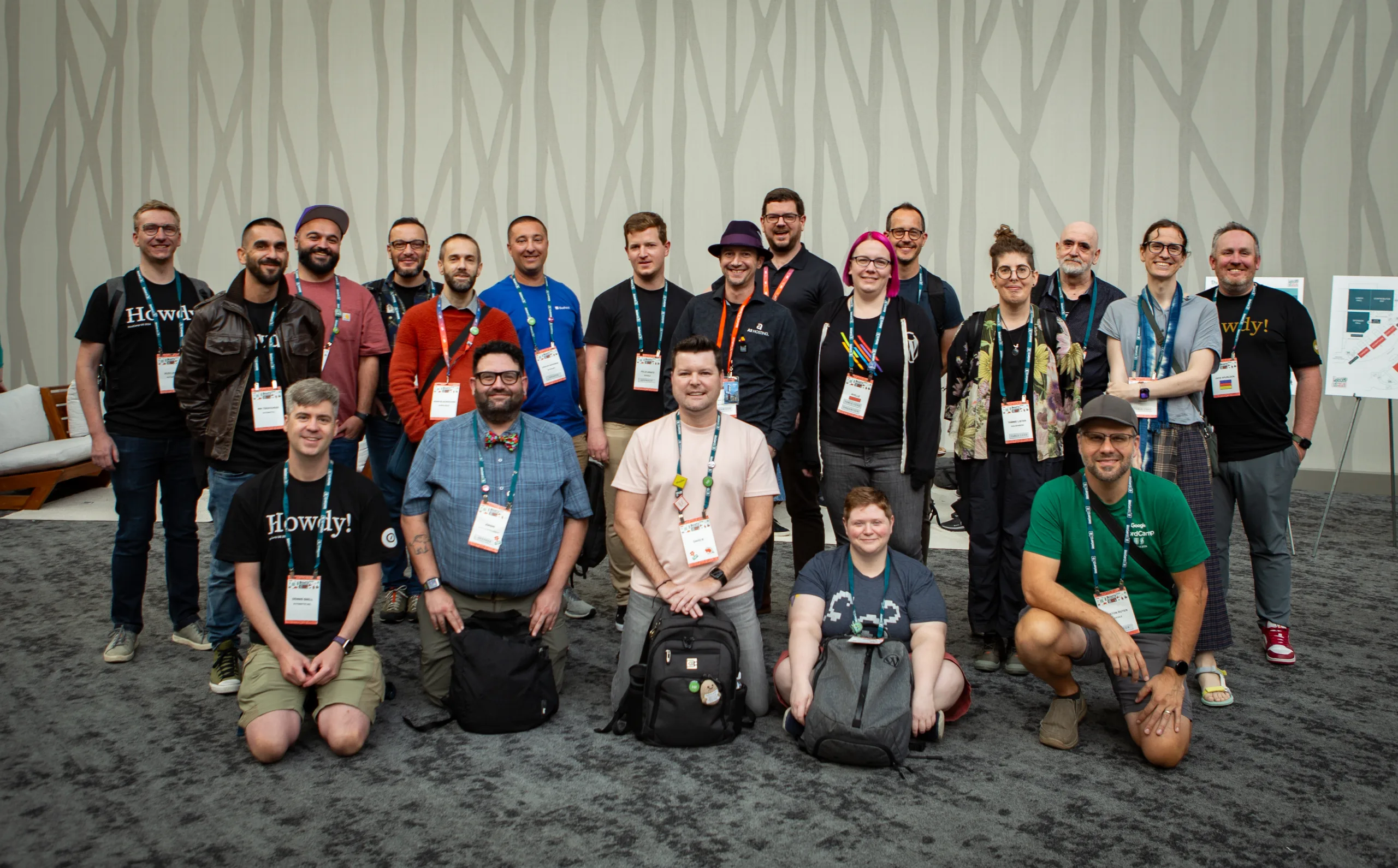 Photo credit: [Brian Richards](https://indieweb.social/@rzen)
If you’re interested, the [full meeting notes have been published on the Make WordPress Core](https://make.wordpress.org/core/2024/09/27/wcus-2024-core-committers-meeting-notes/) site. This post is to follow up on two action items that we took away.
1. Core Committers need to do a better job of documenting their work, responsibilities, and knowledge sharing through: **blogging on their personal sites of course**!
2. There is only very rudimentary documentation around the act of committing to the `wordpress-develop` repository, at best. This is mainly the case because everyone’s workflow and tool set is unique to them. The best way to address this? ☝️ See #1.
I am a month delayed, but here I am!
## Disclaimers
Let’s get one thing out of the way before I go further.
> **Only the most recent major version of WordPress is supported.**
Though security patches are occasionally backported to older versions of WordPress (currently all the way back to the 4.1 branch), [this is not guaranteed and is only done as a courtesy](https://wordpress.org/about/security/). You are strongly encouraged to keep your sites updated and running the latest version of WordPress whenever possible. Auto-updates make this really easy!
OK, now that I’ve made that clear, one note about my setup.
If you’re a newer contributor, or even an experience one that only contributes to the next upcoming WordPress release, my setup will seem overly complicated. And you’re right! It’s not, you it’s me, and I don’t recommend this setup to the average contributor or even committer. But hopefully there are is something in here that you find useful.
 [CC0](https://creativecommons.org/publicdomain/zero/1.0/) licensed [photo](https://wordpress.org/photos/photo/395634db9b/) by [Jennifer Bourn](https://jenniferbourn.com/) from the [WordPress Photo Directory](https://wordpress.org/photos/).
## Contributing Environment Setup
I have three folders on my machine that I use for contributing and/or committing to WordPress Core.
### `wordpress-svn` Folder
As a Build/Test Tool component maintainer and a member of the Security Team, I’m often committing to many different branches of `wordpress-develop`. Sometimes all of them in the same day! Because any of the ([soon to be](https://make.wordpress.org/core/6-7/)) 27 branches (4.1-6.7) could be updated at any time, the build and test tooling needs to be maintained.
The way I have found that works best for me to manage and clearly know which branch I’m working on is to have a separate SVN checkout of each branch with the verbal representation as the folder name. The `wordpress-svn` folder is where I keep these.
```
wordpress-svn
├── five-eight
├── five-five
├── five-four
├── five-nine
├── five-oh
├── five-one
├── five-seven
├── five-six
├── five-three
├── five-two
├── four-eight
├── four-five
├── four-four
├── four-nine
├── four-oh
├── four-one
├── four-seven
├── four-six
├── four-three
├── four-two
├── six-five
├── six-four
├── six-oh
├── six-one
├── six-seven
├── six-six
├── six-three
├── six-two
├── three-eight
├── three-nine
├── three-seven
├── three-six
├── trunk
```
Having separate checkouts also allows me to stage changes to multiple branches ahead of time. This is very helpful in the days leading up to a security release so I don’t have to deal with switching branches and applying patches when I’m responsible for committing the updates and/or version bumps to prepare the release.
I had a setup similar to this even before I was a committer. I used to manage this through a `vvv-custom.yml` file when that was my contribution environment (see my [old blog post about this](https://jonathandesrosiers.com/2017/04/vvv-custom-yml-files/)). It was useful to have previous versions readily available for taking screenshots, or testing how something used to work in older versions of WordPress. When I switched away from VVV, I moved to my current setup which relies on the [local Docker environment included in `trunk`](https://make.wordpress.org/core/2019/08/05/wordpress-local-environment/). Because all of my folders have different names, I can have a unique local environment for all of them (though only one can be running at once).
This `wordpress-svn` directory is where I perform all of my commits to WordPress. I have a script that I use to reset and update these checkouts. More on that later.
I primarily use this folder for committing. But on occasion, I will perform some final testing.
## `wordpress-develop` Folder
The `wordpress-develop` folder is just a clone of my [official wordpress-develop Git mirror](https://github.com/wordpress/wordpress-develop) [fork](https://github.com/desrosj/wordpress-develop) on GitHub. This is where I spend the majority of my time writing, testing, and reviewing code. GitHub is arguably the most convenient place to collaborate on contributions to the WordPress code base, and it’s where the majority of contributors are the most comfortable.
Though suggested changes will **not** be merged on GitHub (SVN is the canonical source of truth), pull requests are great for suggesting improvements and changes, asking questions, and confirming that all of Core’s automated testing completes successfully without issue. You can read more about [how this contributor workflow works in the Core Handbook](https://make.wordpress.org/core/handbook/contribute/git/github-pull-requests-for-code-review/).
### `wordpress-build` Folder
This folder has a clone of my [WordPress Build repository](https://github.com/wordpress/wordpress) fork, which contains the build files that are eventually shipped in each release of WordPress. I use this folder when I need to compare the results of changes to any build scripts against the current state of the built code.
For example, when updating npm dependencies such as `webpack`, `uglify-js` or `postcss`, it could be helpful to confirm no new files are introduced or that only the files expected to change actually do.
## My Committing to WordPress Workflow
In my `wordpress-develop` folder:
1. Create a pull request to wordpress-develop, review pull request from someone else, or some combination of the two.
2. Confirm automated testing through GitHub Actions.
3. Test locally and confirm intended behavior, no unintended consequences of changes, etc. using the local Docker environment.
4. Leave a review or comment on the pull request.
Switch to Trac and my `wordpress-svn` folder.
1. Check for any uncommitted changes using `svn diff`.
2. Anything uncommitted is usually not needed. But if there’s anything I want to save, I’ll create a patch using `svn diff > patch.diff`. Otherwise I’ll wipe it out with `svn revert -R .`.
3. Create a clean, up to date environment by running `svn revert -R . && svn up`.
4. Apply the patch to be committed using `grunt-patch-wordpress`.
- For patches attached to a Trac ticket, running `npm run grunt patch:12345` will list all patch attachments on ticket 12345 to select the one you want to apply.
- For GitHub PRs, running `npm run grunt patch:##PR_URL##` will apply the diff for that specific pull request.
- In some situations, `grunt-patch-wordpress` can’t properly apply the PR diff (when there are [changes in the `.github` directory, for example](https://github.com/WordPress/grunt-patch-wordpress/issues/107)). In this case, I’ll usually:
- Add `.diff` to the PR’s url.
- Save the patch to my machine.
- Use `svn patch patch.diff` to apply the patch on my own.
5. Use `svn diff` to review the local changes after applying the patch to confirm everything looks good.
6. If necessary, spin up the local Docker environment to triple check the changes work as intended.
7. Maybe another `svn diff` if I’m having any doubts about why I’m partially responsible for maintaining software that ships to tens of millions of sites.
For the actual committing to WordPress part, I use the [Mac-based Cornerstone Subversion client](https://cornerstone.assembla.com/). I have all of my local SVN checkouts for `wordpress-develop` added to the app.
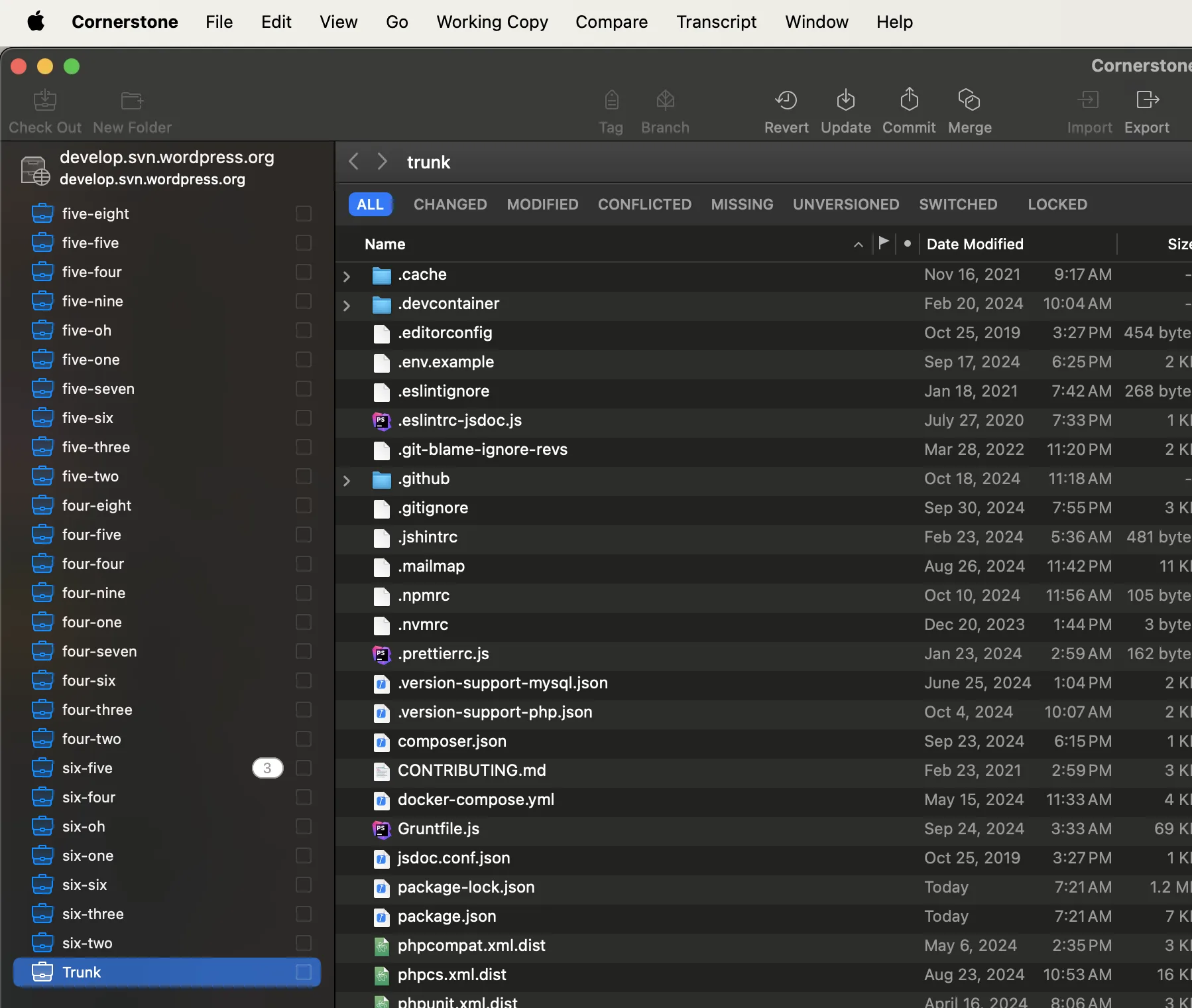
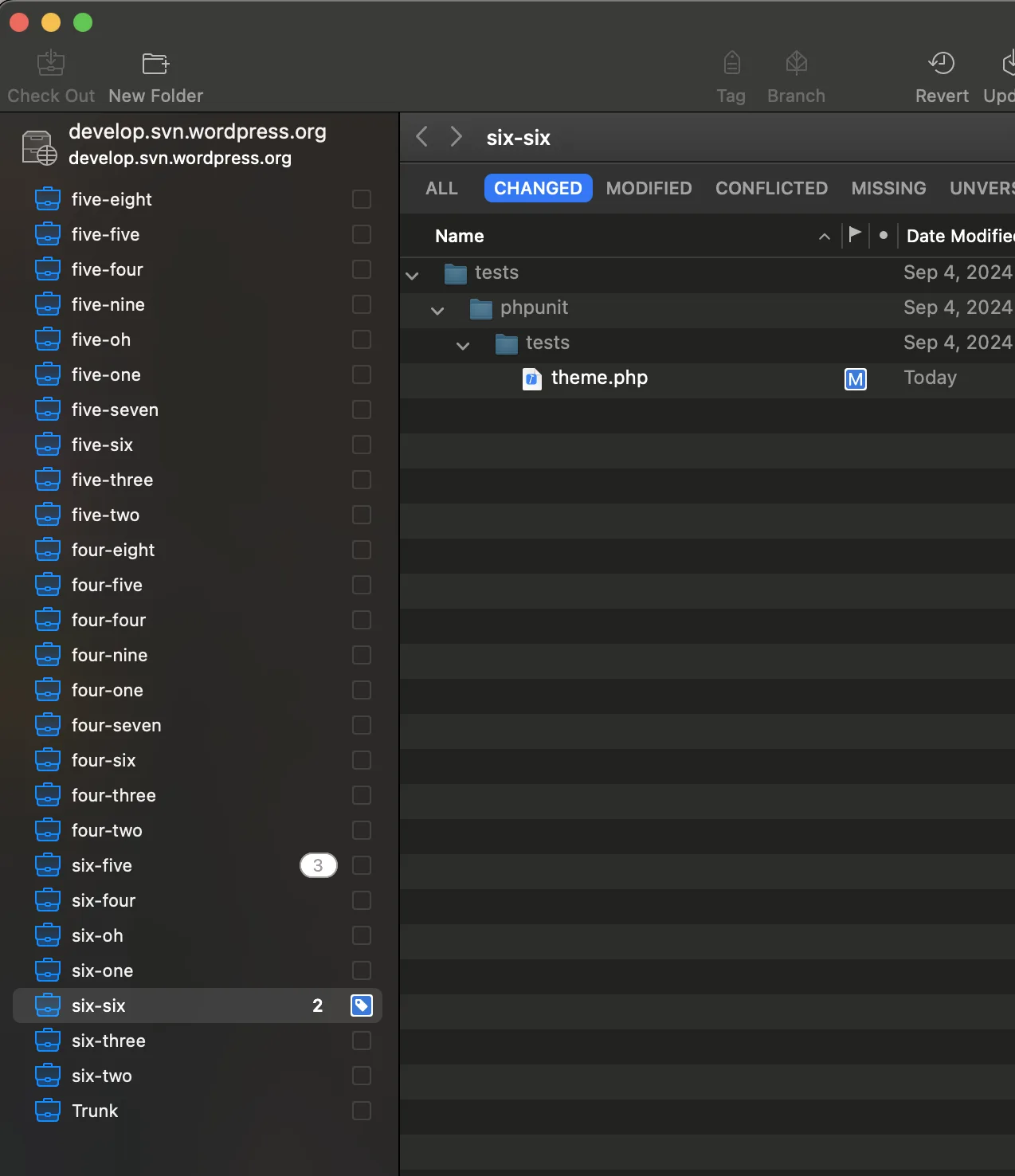
While I use `svn diff` to triple check everything before committing, I really like being able to also see a visual overview of the changes that will be made in the commit. This is especially helpful when moving, adding, or deleting files, and when performing a backport commit (which is essentially a merge). The screenshots below show a staged backport commit, note the blue “Tag” icon indicating that the **`svn:mergeinfo`** has been updated.
 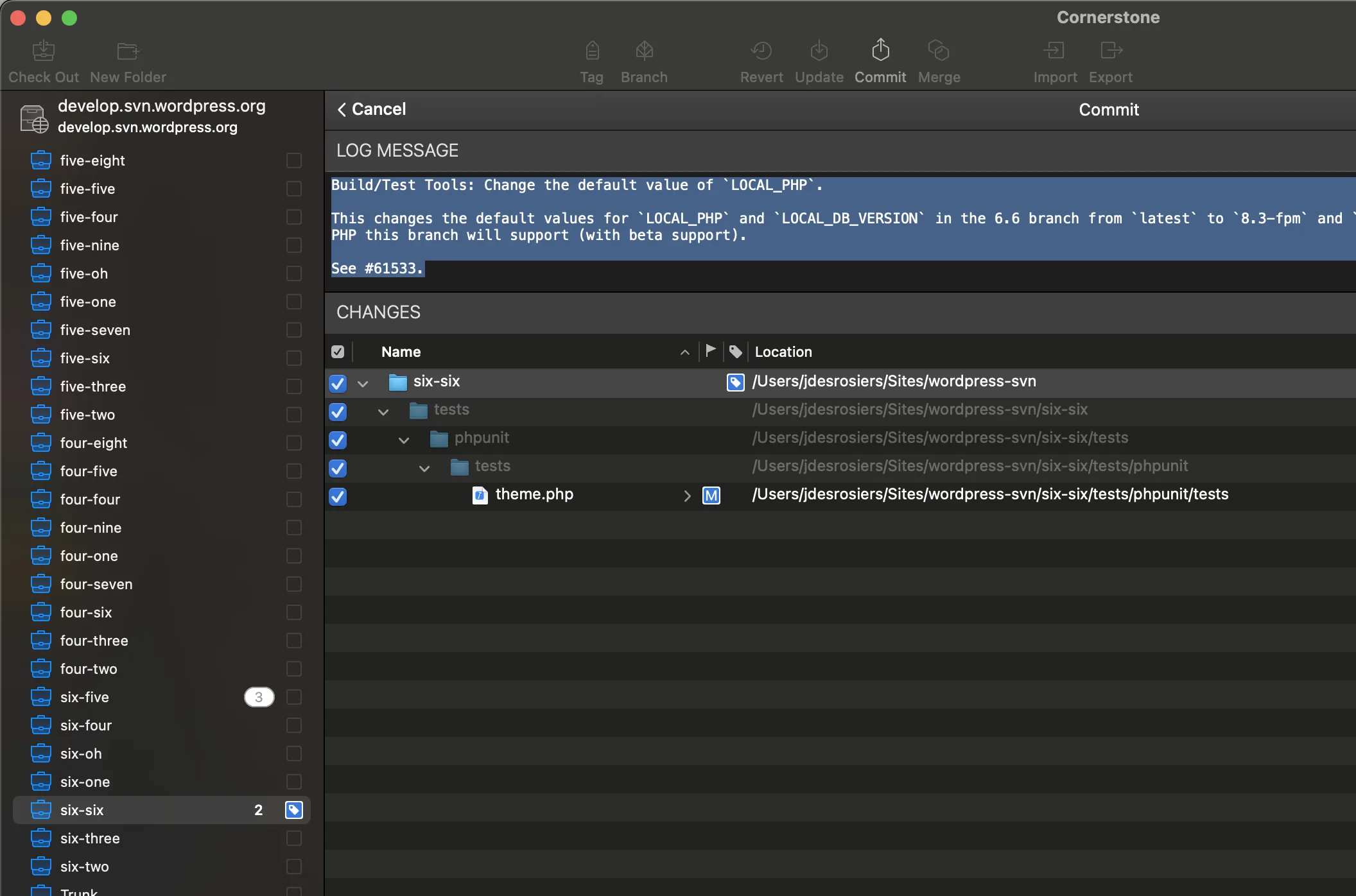
I also like that the log message input preserves anything you type if you cancel and go back to commit in the future. I find that helpful to build a message over time or while waiting for tests to finish running. This also allows me to stage multiple commits to multiple branches while preparing for a security release or other coordinated backport effort.
After a commit, it pre-populates the field with the previous commit message, which helps me remember the correct order of the [required information](https://make.wordpress.org/core/handbook/best-practices/commit-messages/#format) (is “Fixes” before or after “Props” ?).
That’s pretty much it!
### Miscellaneous Notes
I mentioned above that I have a script for resetting and updating my SVN checkouts. I’ve [shared this in a Gist](https://gist.github.com/desrosj/fc6c84d45ca4df5dc1cd03cad84254bb). Given the folder structure I shared above, it will attempt to remove all `node_modules` folders and ensure the proper branch is checked out with the latest changes for each version specified. I also have a [script that pulls in changes from the Git mirror into my fork](https://gist.github.com/desrosj/c474df40ee4c61b4b9d2446f3eaba04d).
I have aliases set up for these scripts, so I only have to remember `wpup` and `wptrunkup`. I don’t run these often, though, usually just after a security release. At least daily I do run `git fetch --all && git merge upstream/trunk` to bring my primary branch up to date, though.
## Conclusion
As I said at the beginning, this setup is probably too much for the large majority of contributors. And it’s what works specifically for me. But hopefully you see something that is useful for your own contributing workflow. There’s a [page in the Core Handbook that will be updated as more committers share their committing workflows](https://make.wordpress.org/core/handbook/best-practices/when-you-become-a-committer/core-committer-workflows/). But here are links to the posts that were published before mine in a much more timely fashion!
- [Aaron Jorbin](https://aaron.jorb.in/my-core-contribution-workflow/)
- [David Baumwald](https://dream-encode.com/how-i-commit-to-wordpress-core/)
- [Dennis Snell](https://fluffyandflakey.blog/2024/09/19/my-wordpress-contribution-workflow/)
- [Drew Jaynes](https://werdswords.com/how-i-commit-to-wordpress/)
- [Felix Arntz](https://felix-arntz.me/blog/my-wordpress-core-contribution-workflow/)
- [Joe McGill](https://joemcgill.net/2024/09/how-i-commit-to-wordpress/)
- [Marius Jensen](https://clorith.net/2024/09/how-i-commit-to-wordpress/)
- [Pascal Birchler](https://pascalbirchler.com/how-i-commit-to-wordpress/)
And finally, don’t be [afraid to make mistakes](https://core.trac.wordpress.org/changeset/47728). Deep down, we’re all human. Wear them as a [badge of honor](https://core.trac.wordpress.org/search?q=Unprops&noquickjump=1&changeset=on).
*Featured image credit: [CC0](https://creativecommons.org/publicdomain/zero/1.0/) licensed [photo](https://wordpress.org/photos/photo/24566f359c/) by [Jeff Golenski](https://wordpress.org/photos/author/maverick3x6/) from the [WordPress Photo Directory](https://wordpress.org/photos/).*
### Like this:
Like Loading…